Mozilla Firefox with Yandex search
Mozilla Firefox with Yandex already set as the default search, and Yandex Images, Video, Maps and other Yandex searches right from the address bar. You can set it all up at once with AutoSettings, or just add the add-ons to the Mozilla Firefox you already have.
-
 Mozilla Firefox the regular release
-
 Mozilla Firefox Developer Edition the edition for developers
All at once with AutoSettings
Section titled “All at once with AutoSettings”- Open the AutoSettings menu - see How to run it.
- Choose the “Programs” section, then “Browsers.”
- Pick “Mozilla Firefox + Yandex search (add-on)” or “Firefox Developer Edition + Yandex search (add-on).”
What you get:
- Mozilla Firefox in English if the menu is in English, and in Russian if the menu is in Russian.
- Yandex as the default search.
- On its first start, Mozilla Firefox adds our Yandex add-ons. You can turn off any of them.
If Mozilla Firefox is already installed and you want a clean start, pick the reinstall row in the same section. AutoSettings closes Mozilla Firefox, removes it completely and installs it again, with search and add-ons. Before that, it asks whether to erase your profiles - bookmarks and history. If you have both Mozilla Firefox and Mozilla Firefox Developer Edition, reinstalling one erases only its own profiles.
The Russian build of Mozilla Firefox Developer Edition sometimes lags behind in the catalog. In that case an older beta goes on first, and then Mozilla Firefox updates itself.
Yandex add-ons for Mozilla Firefox
Section titled “Yandex add-ons for Mozilla Firefox”Tableau with Yandex Search
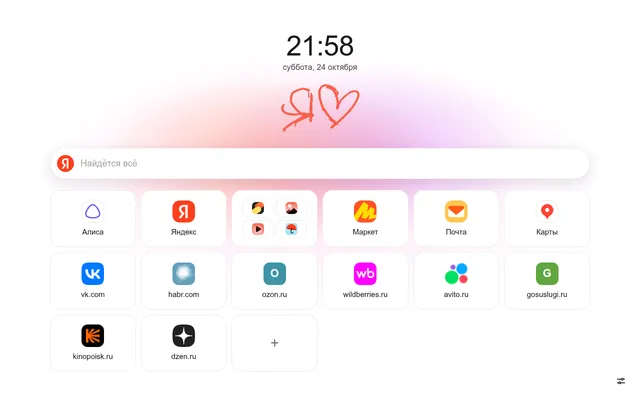
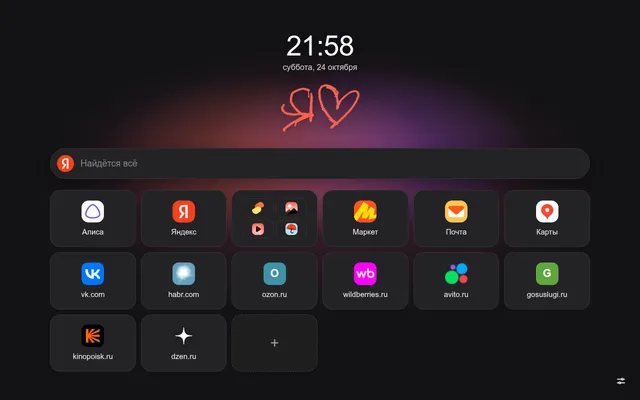
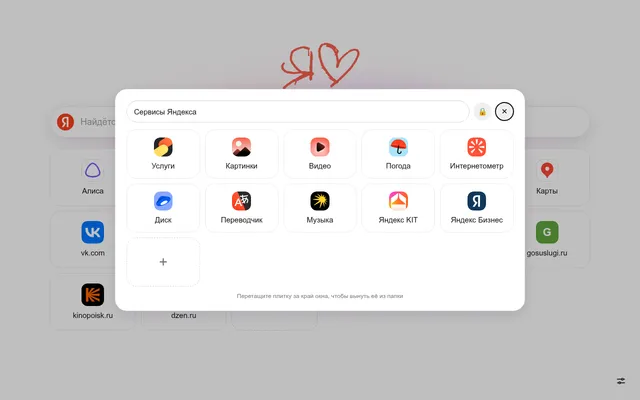
Section titled “Tableau with Yandex Search” Tableau with Yandex Search is a new tab like in Yandex Browser. Open a tab and you get Yandex search with suggestions, Alice in one click and your favorite sites as tiles. Put sites into folders like on a phone, pick a light or dark theme and a background. The “Search only” mode leaves just the search box. Works in Mozilla Firefox on your computer.

Yandex search from the address bar
Section titled “Yandex search from the address bar”If you already have Mozilla Firefox, adding the add-ons is enough. This is Yandex search for Firefox: each one installs from Mozilla’s official add-ons site in a couple of clicks and works in Firefox on your computer and on Android.
| Add-on | What it finds | Keyword |
|---|---|---|
 Yandex Search Engine | everything; offers to make Yandex your default search | @ya |
 Yandex Shopping | products, prices and store offers | @tovary |
 Yandex Images | pictures and photos | @images |
 Yandex Video | videos from many sites | @video |
 Yandex Maps | places, businesses, addresses and routes | @maps |
 Yandex Finance | deposits, loans and exchange rates | @finance |
 Yandex Realty | homes and apartments for sale and rent | @realty |
 Yandex Services | professionals: ratings, reviews and prices | @uslugi |
Each add-on searches from the address bar by its keyword and with a button on the Mozilla Firefox toolbar.
What each one does:
- Yandex Search for Mozilla Firefox - the main add-on. It adds the Yandex search engine to Firefox and offers to make it your default search. Search right from the address bar or with the
@yakeyword. - Yandex Shopping for Firefox - product search in Mozilla: prices and offers from many stores in one place, easy to compare before you buy.
- Yandex Images for Mozilla - Yandex image and photo search straight from the Firefox address bar.
- Yandex Video for Mozilla Firefox - videos from many sites in one Yandex Video results page.
- Yandex Maps for Firefox - addresses, places, businesses and routes: your query opens right on Yandex Maps.
- Yandex Finance for Mozilla - deposits, loans and exchange rates in Yandex search.
- Yandex Realty for Mozilla Firefox - flats and houses for sale and for rent.
- Yandex Services for Firefox - professionals in your city: ratings, reviews and prices on one page.
How to make Yandex your default search in Mozilla Firefox
Section titled “How to make Yandex your default search in Mozilla Firefox”Once you add Yandex Search Engine, Mozilla Firefox asks whether to change your default search. Say yes.
If you missed it, on your computer:
- Open the Mozilla Firefox menu (☰) and choose “Settings.”
- Go to “Search.”
- Under “Default Search Engine,” pick “Yandex.”
On Android: tap ⋮, then Settings → Search → Default search engine, and pick Yandex.
How to set up Yandex search in Firefox on iPhone and iPad
Section titled “How to set up Yandex search in Firefox on iPhone and iPad”On iPhone and iPad (iOS), Mozilla Firefox does not install add-ons. You add Yandex search by hand, once.
Copy the search string:
https://ya.ru/search/?source=ff_ext&clid=15437607&text=%s- Open Mozilla Firefox, tap the menu button at the bottom of the screen (top right on iPad) and choose Settings.
- Open Search and tap Add Search Engine under the list of search engines.
- Type “Yandex” in the Title field and paste the copied string into the URL field.
- Tap Save, then pick Yandex under Default Search Engine.
The same way, through the search settings, you can add Yandex to other browsers too - Google Chrome, Microsoft Edge, Opera, Brave, Vivaldi and any browser that lets you add your own search engine: “Search” or “Search engine” → “Add” → paste the string → make it the default. Steps for each browser are on the page “Yandex search in any browser”.
How to search by keyword
Section titled “How to search by keyword”Type the keyword, a space and what you’re looking for in the address bar. For example, @images kittens and Enter opens kitten pictures in Yandex Images.